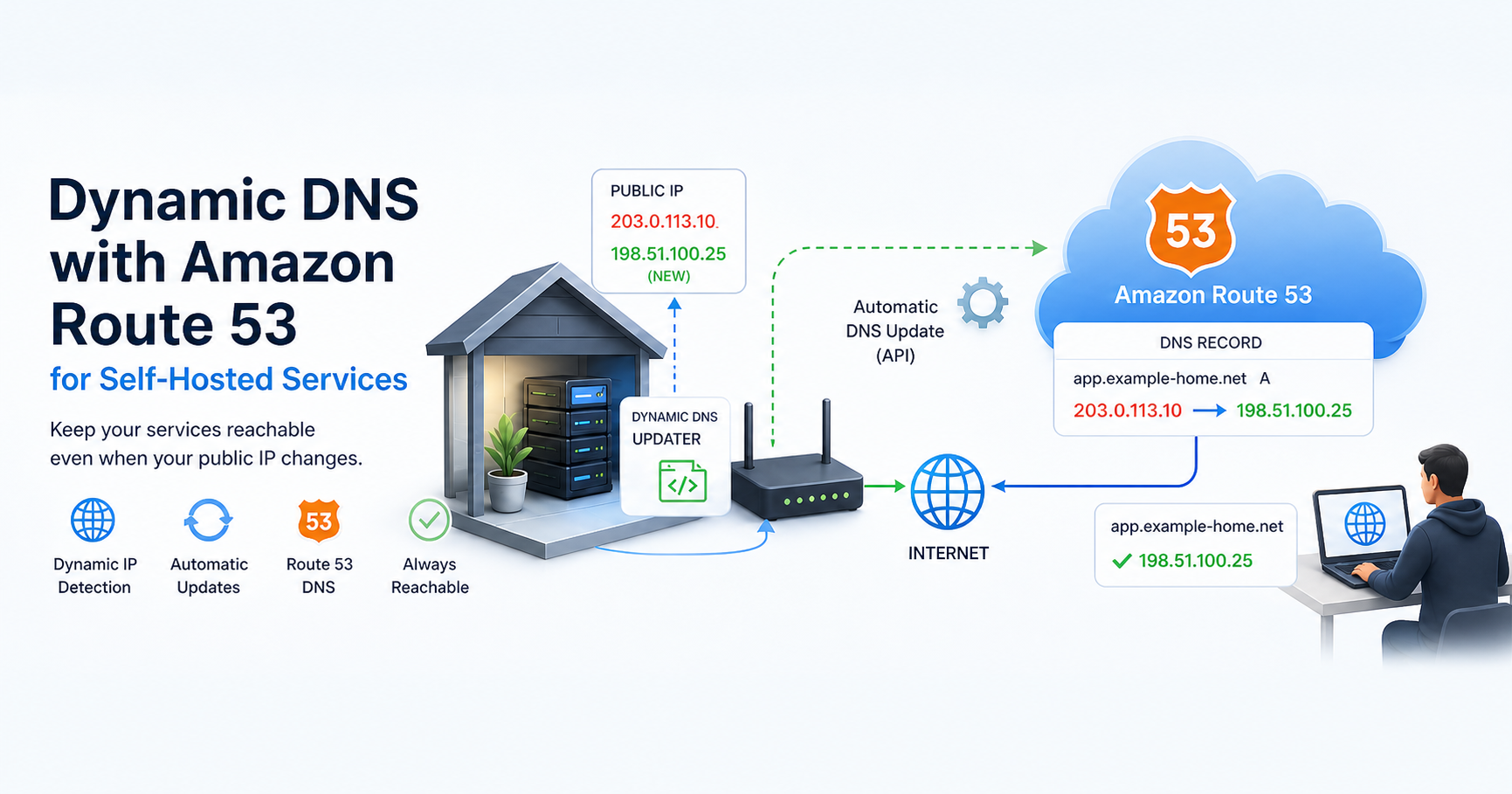


Dynamic DNS with Amazon Route 53 for Self-Hosted Services
May 2, 2026
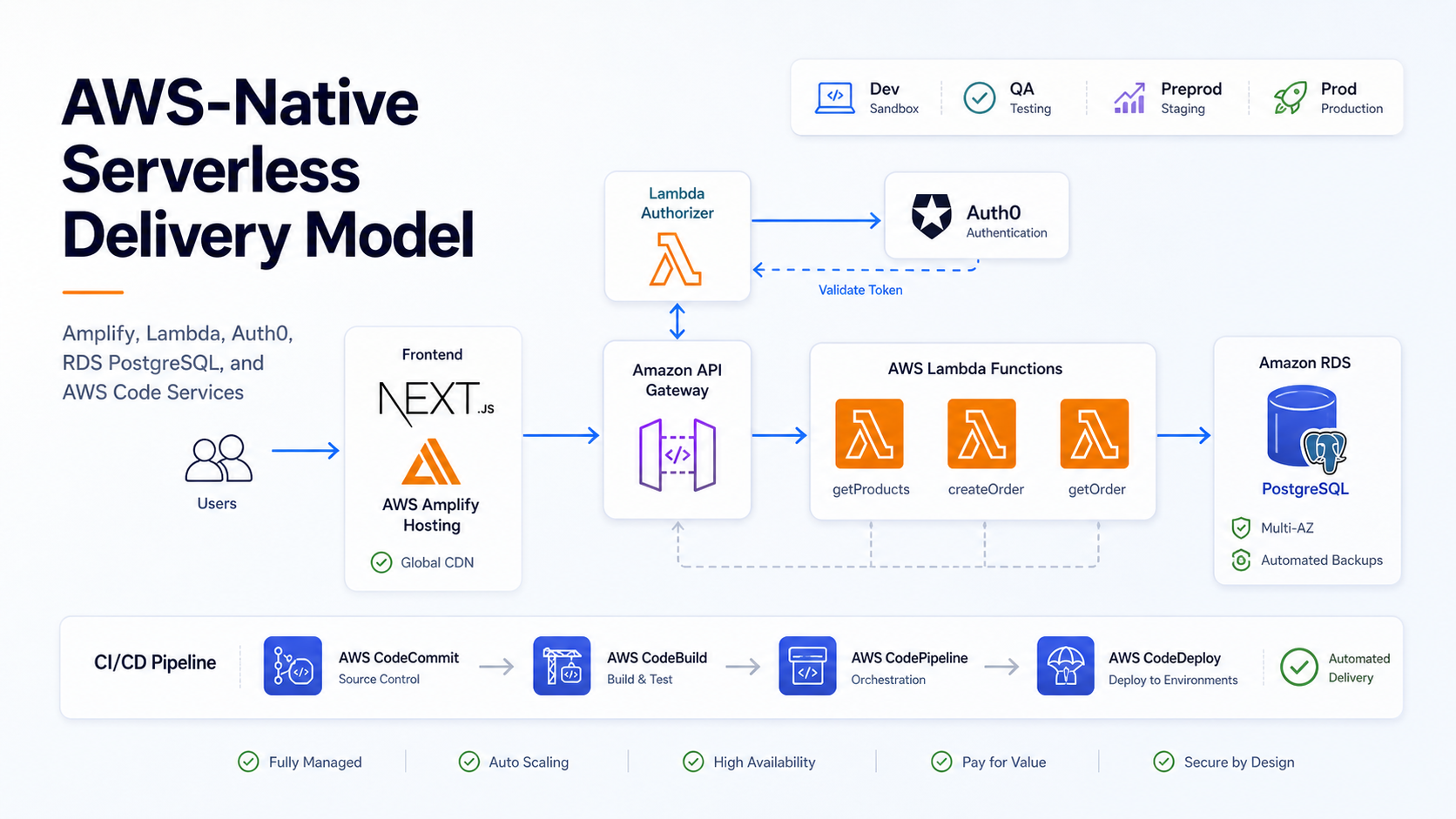
Building an AWS-Native Serverless Delivery Model with Amplify, Lambda, Auth0, and CodePipeline
May 2, 2026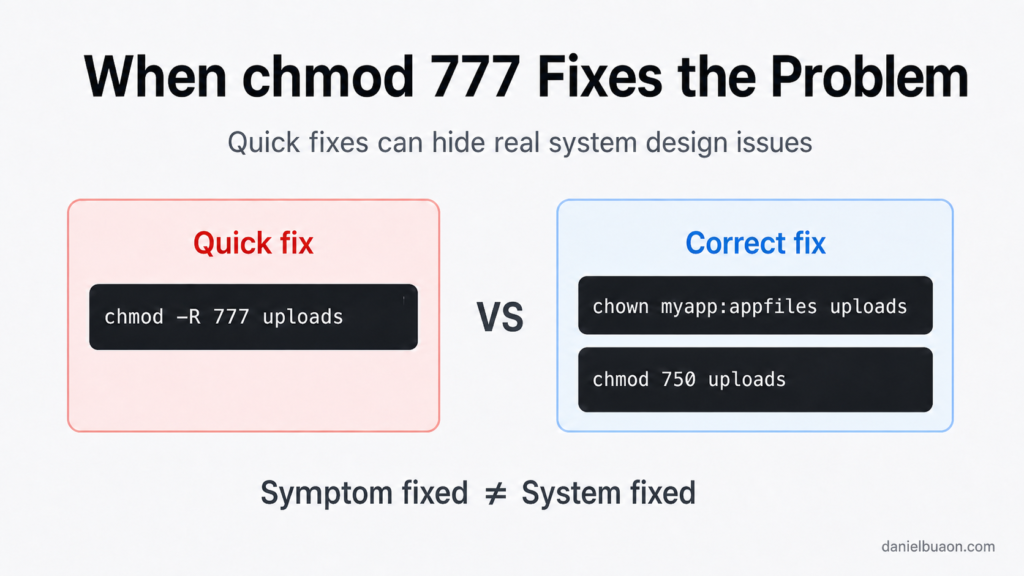
When
chmod 777 “Fixes” the Problem: AI, Linux Permissions, and
the Human Troubleshooting Gap
By Daniel Buaon
Senior Cloud & AI Infrastructure Engineer
AI tools are extremely useful when troubleshooting technical issues. They can suggest commands, explain errors, summarize documentation, and help us move faster when we are stuck.
But there is an important difference between making an error disappear and actually fixing the system.
This article shows a realistic Linux troubleshooting case where an AI-generated suggestion appears to solve a permission problem. The application starts working, the error disappears, and the immediate issue seems resolved.
However, the proposed fix weakens the security model of the system and hides the real cause of the problem.
The goal is not to say that AI tools are bad.
The goal is to show why human judgment still matters, especially when working with Linux permissions, services, users, groups, and production-like environments.
The scenario
Imagine a small web application running on a Linux server.
The application needs to write uploaded files to this directory:
/var/www/myapp/uploadsThe application itself runs as a dedicated service user:
myappThe web server runs as:
www-dataThis is a common setup. The application process may write generated files, reports, uploads, or temporary assets. The web server may serve some of those files back to users.
One day, uploads start failing.
From the application logs, you see an error like this:
Error: EACCES: permission denied, open '/var/www/myapp/uploads/report.pdf'Or, when testing from the shell:
touch /var/www/myapp/uploads/test.txtyou get:
touch: cannot touch '/var/www/myapp/uploads/test.txt': Permission deniedAt this point, it looks like a classic Linux permission problem.
The quick AI-generated fix
A very common AI-generated answer for this kind of error is something like:
sudo chmod -R 777 /var/www/myapp/uploadsThe explanation may sound reasonable:
This gives read, write, and execute permissions to everyone, allowing the application to write files into the uploads directory.And technically, after running it, the application may start working.
sudo chmod -R 777 /var/www/myapp/uploadsThen:
touch /var/www/myapp/uploads/test.txtworks.
The upload succeeds.
The error disappears.
From a purely functional perspective, the issue looks fixed.
But this is exactly where the troubleshooting gap begins.
Why this appears to work
Linux permissions define what the owner, group, and others can do with a file or directory.
A mode like 777 means:
owner: read, write, execute
group: read, write, execute
others: read, write, execute
So, when we run:
chmod -R 777 /var/www/myapp/uploadswe are effectively saying:
Everyone can read, write, and enter this directory.That includes:
- the application user;
- the web server user;
- any other local user;
- any unrelated process running on the same machine;
- potentially compromised processes running under accounts that should not have access.
That is why the command works.
It removes the permission barrier for everyone.
But that is also the problem.
Why chmod 777 is
not a real fix
The problem with chmod 777 is not that it never
works.
It often works.
The problem is that it works by removing too much protection.
In a production-like system, an uploads directory may contain user files, generated documents, reports, temporary data, application artifacts, or other content that should be controlled by the application.
Giving write access to everyone can create several problems:
- unrelated users or processes may modify files;
- compromised processes have a larger impact;
- file ownership becomes harder to reason about;
- future debugging becomes more confusing;
- the system no longer documents who is supposed to access what;
- security reviews become harder to justify.
A correct fix should answer a more specific question:
Which user or group actually needs access to this directory?Not:
How do I make the permission error disappear?That difference matters.
The human troubleshooting approach
A more careful troubleshooting process starts by inspecting the system.
First, check the directory ownership and permissions:
ls -ld /var/www/myapp/uploadsExample output:
drwxr-xr-x 2 root root 4096 May 2 10:30 /var/www/myapp/uploadsThis tells us:
owner: root
group: root
permissions: 755
For directories, 755 means:
owner can read, write, and enter
group can read and enter
others can read and enter
Only root can write there.
If the application runs as myapp, it cannot create files
in that directory.
Now check which user the application process is running as:
ps aux | grep myappExample:
myapp 12345 0.3 1.2 ... node server.jsOr, if it is a systemd service:
systemctl status myappThen inspect the unit file:
systemctl cat myappExample:
[Service]
User=myapp
Group=myapp
WorkingDirectory=/opt/myapp
ExecStart=/usr/bin/node server.js
Now we know the service runs as:
User: myapp
Group: myapp
So the application needs write access to:
/var/www/myapp/uploadsThe problem is no longer vague. It is specific.
The directory is owned by root:root, but the application
runs as myapp.
A better fix: assign ownership correctly
If the uploads directory is only used by the application, the simplest correct fix may be:
sudo chown -R myapp:myapp /var/www/myapp/uploads
sudo chmod -R 750 /var/www/myapp/uploads
Now check it again:
ls -ld /var/www/myapp/uploadsExpected result:
drwxr-x--- 2 myapp myapp 4096 May 2 10:30 /var/www/myapp/uploadsThis means:
owner myapp: read, write, execute
group myapp: read, execute
others: no access
If only the application user needs to write, this is much better than
777.
The application can write files.
Other unrelated users cannot.
When the web server also needs access
Sometimes the web server also needs to read files from the uploads directory.
For example:
Nginx or Apache serves uploaded files directlyIn that case, a better design may be to use a shared group.
For example:
sudo groupadd appfiles
sudo usermod -aG appfiles myapp
sudo usermod -aG appfiles www-data
sudo chown -R myapp:appfiles /var/www/myapp/uploads
Then apply separate permissions for directories and files:
sudo find /var/www/myapp/uploads -type d -exec chmod 750 {} \;
sudo find /var/www/myapp/uploads -type f -exec chmod 640 {} \;
This gives:
directories: owner rwx, group rx, others none
files: owner rw, group r, others none
This is much more controlled than recursively applying
777.
The application owner can write.
The web server group can read.
Everyone else has no access.
Why directories need execute permission
One common source of confusion is the execute bit on directories.
For regular files, execute means the file can be executed as a program or script.
For directories, execute means the directory can be entered or traversed.
So this would be wrong for a directory:
chmod 640 /var/www/myapp/uploadsEven if read permission exists, users may not be able to enter the directory.
For directories, permissions usually need execute where traversal is required:
r-x allows listing and entering
-wx allows creating or removing entries if the name is known
rwx allows listing, entering, and modifying
That is why using find separately for files and
directories is often better than applying one recursive mode to
everything.

Comparing both approaches
The AI quick fix:
sudo chmod -R 777 /var/www/myapp/uploadsAdvantages:
Fast
Simple
Usually makes the error disappear
Problems:
Too permissive
Weak security model
Hides the real ownership problem
Difficult to justify in production
The human troubleshooting fix:
sudo chown -R myapp:appfiles /var/www/myapp/uploads
sudo find /var/www/myapp/uploads -type d -exec chmod 750 {} \;
sudo find /var/www/myapp/uploads -type f -exec chmod 640 {} \;
Advantages:
Solves the actual cause
Defines who needs access
Keeps permissions limited
Matches least-privilege principles
Tradeoff:
Requires understanding the service user, group model, and application behaviorThat tradeoff is exactly where human engineering judgment matters.
A better way to use AI in this situation
The problem is not asking AI for help.
The problem is accepting the first command that makes the error disappear.
A better prompt would be:
I have a Linux application running as user myapp.
It needs to write to /var/www/myapp/uploads.
The directory is currently owned by root:root with mode 755.
Please suggest a least-privilege fix.
Do not use chmod 777.
Explain how to verify the service user and required permissions.
This gives the AI more context and forces the answer toward a safer solution.
Even better, ask for alternatives:
Show me two possible fixes:
1. one where only the application writes files;
2. one where the web server also needs read access.
Explain the security tradeoffs.
AI tools work much better when the human provides constraints.
Practical checklist
Before applying a permission fix, ask:
Which user runs the process?
Which group should have access?
Does the web server need read access?
Does the application need write access?
Do other users need any access at all?
Are directories and files using appropriate modes?
Is the change recursive?
Could this expose generated or uploaded files?
Useful commands:
ls -ld /path/to/directory
ls -l /path/to/directory
id myapp
groups myapp
ps aux | grep myapp
systemctl status myapp
systemctl cat myapp
namei -l /var/www/myapp/uploads
The namei command is especially useful because it shows
permissions for each path component:
namei -l /var/www/myapp/uploadsExample output:
f: /var/www/myapp/uploads
drwxr-xr-x root  root  /
drwxr-xr-x root  root  var
drwxr-xr-x root  root  www
drwxr-xr-x myapp myapp myapp
drwxr-x--- myapp myapp uploads
This helps detect cases where the final directory is correct, but a parent directory blocks access.
What this teaches
This example shows a broader lesson.
Many infrastructure problems have two kinds of solutions:
A command that makes the symptom disappearand:
A change that makes the system correctThose are not always the same.
In Linux permissions, the difference is especially important because the system may continue working after a bad fix.
Nothing obviously breaks.
The application runs.
The upload succeeds.
The error is gone.
But the system is now less controlled.
That kind of mistake is easy to miss in development and painful to clean up later.
Conclusion
AI can be very effective at accelerating troubleshooting, but it does not automatically understand the operational context of your system.
A command like chmod 777 can make a permission error
disappear. It can also introduce a security weakness and hide the real
problem.
The better approach is to use AI as an assistant, not as the final authority.
Let it suggest possibilities.
Let it explain commands.
Let it help you think faster.
But before applying a fix, especially on Linux systems, ask the engineering questions:
Who needs access?
What kind of access?
Where is the boundary?
What is the least-privilege change that solves the problem?
That is the difference between fixing a symptom and fixing the system.
About the author
Written by Daniel Buaon, Senior Cloud & AI
Infrastructure Engineer.
I write about Linux, AWS, DevOps, infrastructure automation, and
real-world troubleshooting.