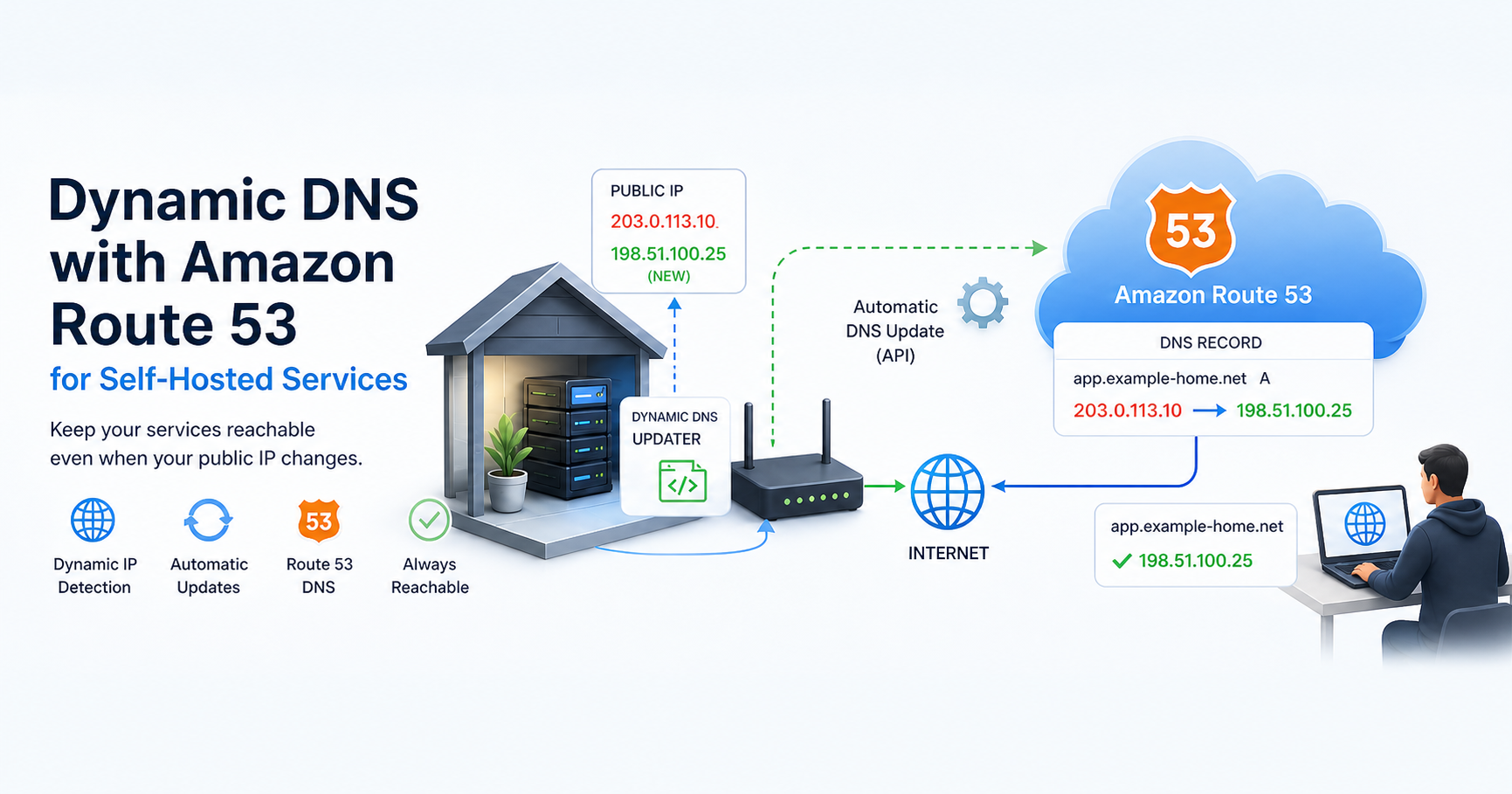

Dynamic DNS with Amazon Route 53 for Self-Hosted Services
May 2, 2026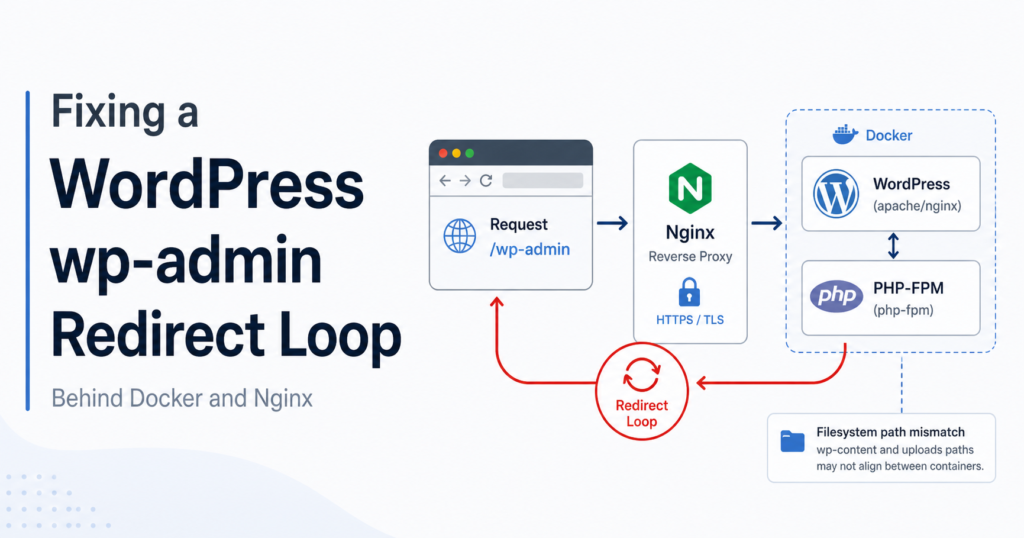
Fixing
a WordPress wp-admin Redirect Loop Behind Docker and
Nginx
By Daniel Buaon
Senior Cloud & AI Infrastructure Engineer
When running WordPress in containers behind an Nginx reverse proxy, some issues are not immediately obvious from the browser.
In this case, the public website was loading correctly, but accessing the WordPress administration page produced a redirect loop:
ERR_TOO_MANY_REDIRECTSThe affected URL was:
https://www.docs-example.dev/wp-admin/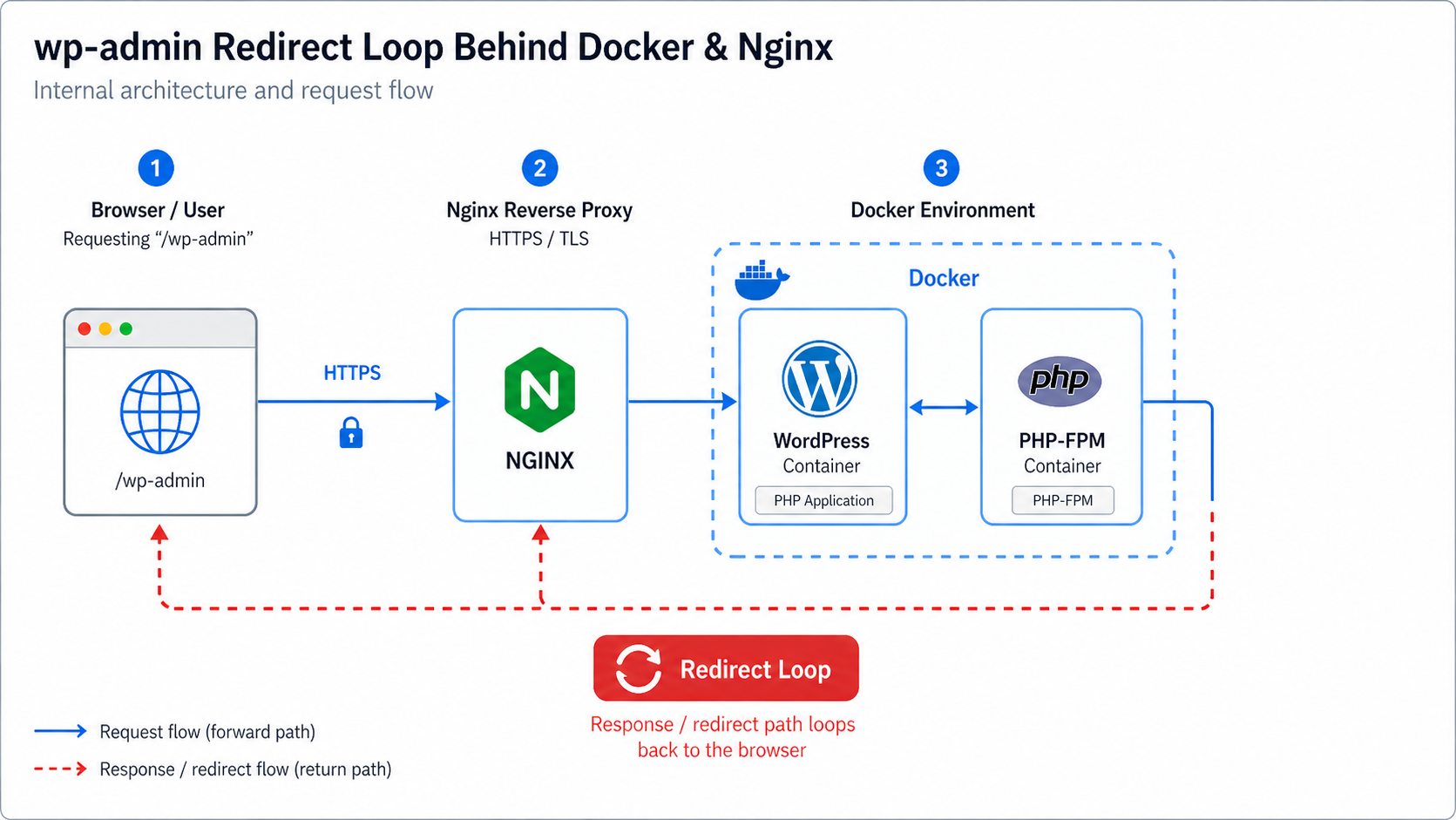
The Setup
The environment was composed of several Docker containers:
- Nginx as the public reverse proxy and HTTPS endpoint
- Multiple WordPress containers using PHP-FPM
- A MySQL container
- Let’s Encrypt certificates managed through Certbot
- DNS records managed in Amazon Route 53
The simplified architecture looked like this:
Internet
  -> Route 53
  -> Public IP
  -> Nginx container
  -> WordPress PHP-FPM container
  -> MySQL container
The Symptom
The browser showed:
This page isn’t working
www.docs-example.dev redirected you too many times.
ERR_TOO_MANY_REDIRECTS
Clearing cookies did not solve the issue.
The first useful test was checking the redirects with
curl:
curl -IL https://www.docs-example.dev/wp-admin/The response showed the same URL being returned repeatedly:
HTTP/2 302
location: https://www.docs-example.dev/wp-admin/
x-redirect-by: WordPress
This was an important clue. The redirect was not alternating between
http and https, nor between www
and non-www. WordPress was redirecting
/wp-admin/ back to itself.
Testing wp-login.php
The next step was to test the login page directly:
curl -IL --max-redirs 5 https://www.docs-example.dev/wp-login.phpThat returned:
HTTP/2 200This changed the direction of the troubleshooting. HTTPS, cookies,
PHP-FPM, and the login page were working. The problem was specific to
/wp-admin/.
First Issue: try_files
The Nginx location / block had this configuration:
location / {
    try_files $uri /index.php$is_args$args;
}
For WordPress, the more standard configuration is:
location / {
    try_files $uri $uri/ /index.php$is_args$args;
}
The missing $uri/ matters because
/wp-admin/ is a real directory inside WordPress. Without
checking the directory form, Nginx may pass the request incorrectly to
the main WordPress front controller.
After changing the block to:
location / {
    try_files $uri $uri/ /index.php$is_args$args;
}
the redirect loop was resolved, but a new error appeared:
HTTP/2 404And the browser showed:
File not found.This was still progress: the infinite redirect was gone.
Second Issue: Docker Paths and PHP-FPM
The setup used different mount paths between the Nginx container and the WordPress PHP-FPM container.
In docker-compose.yml, the WordPress container saw its
files here:
/var/www/htmlBut the Nginx container mounted the same WordPress volume here:
/var/www/html/wp2The Nginx site configuration used:
root /var/www/html/wp2;At one point, the FastCGI configuration used:
fastcgi_param SCRIPT_FILENAME $document_root$fastcgi_script_name;From the Nginx container point of view, that resolved to something like:
/var/www/html/wp2/wp-admin/index.phpBut inside the WordPress PHP-FPM container, that path did not exist. PHP-FPM expected:
/var/www/html/wp-admin/index.phpSo the correct FastCGI parameter for that specific WordPress container was:
fastcgi_param SCRIPT_FILENAME /var/www/html$fastcgi_script_name;The corrected PHP block looked like this:
location ~ \.php$ {
    try_files $uri =404;
    fastcgi_split_path_info ^(.+\.php)(/.+)$;
    fastcgi_pass wordpress2:9000;
    fastcgi_index index.php;
    include fastcgi_params;

    fastcgi_param SCRIPT_FILENAME /var/www/html$fastcgi_script_name;
    fastcgi_param PATH_INFO $fastcgi_path_info;

    fastcgi_param HTTPS on;
    fastcgi_param SERVER_PORT 443;
    fastcgi_param REQUEST_SCHEME https;
    fastcgi_param HTTP_X_FORWARDED_PROTO https;
    fastcgi_param HTTP_X_FORWARDED_SSL on;
}
Why the Path Matters
This is a common source of confusion in Dockerized PHP-FPM setups.
Nginx and PHP-FPM are different containers. Even if they share the same Docker volume, they do not necessarily mount it at the same internal path.
Nginx needs a path that exists inside the Nginx container.
PHP-FPM needs a script path that exists inside the PHP-FPM container.
If these paths are not aligned, PHP-FPM may return:
File not found.The Certificate Was Not the Issue
There was also a moment of confusion around the TLS certificate path.
The Nginx block for docs-example.dev used a certificate
stored under:
/etc/letsencrypt/live/infra-example.dev/At first glance, that looked wrong. However, Certbot showed that this was a SAN certificate including multiple domains:
infra-example.dev
www.infra-example.dev
docs-example.dev
www.docs-example.dev
So using the infra-example.dev certificate path was
valid in this case. The folder name came from the first domain used when
the certificate was generated.
Validation
After updating the Nginx configuration, always validate before restarting:
docker exec webserver nginx -tOnly restart Nginx if the test is successful:
docker restart webserverThen test the admin URL again:
curl -IL --max-redirs 5 https://www.docs-example.dev/wp-admin/The expected result is that /wp-admin/ redirects to the
login page instead of redirecting to itself or returning
File not found.
Lessons Learned
This issue was not caused by DNS, cookies, or the browser.
The root cause was a combination of WordPress routing, Nginx
try_files behavior, and the difference between filesystem
paths inside the Nginx and PHP-FPM containers.
The most important lessons were:
- Use
curlto inspect redirects instead of relying only on the browser. - Check whether WordPress is redirecting to a different URL or to the same URL.
- For WordPress, include
$uri/intry_files. - In Dockerized PHP-FPM setups, remember that Nginx and PHP-FPM may see the same files under different paths.
- Validate Nginx configuration with
nginx -tbefore restarting. - A certificate folder name does not always represent all domains included in the certificate; check the certificate identifiers.
Final Corrected Snippets
WordPress location block:
location / {
    try_files $uri $uri/ /index.php$is_args$args;
}
PHP-FPM block for the WordPress container:
location ~ \.php$ {
    try_files $uri =404;
    fastcgi_split_path_info ^(.+\.php)(/.+)$;
    fastcgi_pass wordpress2:9000;
    fastcgi_index index.php;
    include fastcgi_params;

    fastcgi_param SCRIPT_FILENAME /var/www/html$fastcgi_script_name;
    fastcgi_param PATH_INFO $fastcgi_path_info;

    fastcgi_param HTTPS on;
    fastcgi_param SERVER_PORT 443;
    fastcgi_param REQUEST_SCHEME https;
    fastcgi_param HTTP_X_FORWARDED_PROTO https;
    fastcgi_param HTTP_X_FORWARDED_SSL on;
}
Conclusion
Troubleshooting containerized WordPress requires looking at the full request path: DNS, TLS, Nginx, FastCGI, PHP-FPM, and WordPress itself.
In this case, the browser only showed a redirect loop. The actual fix came from following the HTTP redirects, checking Nginx routing, and understanding the filesystem boundaries between containers.
About the author
Written by Daniel Buaon, Senior Cloud & AI
Infrastructure Engineer.
I write about Linux, AWS, DevOps, infrastructure automation, and
real-world troubleshooting.